415-
cloversoftmail@earthlink.net
Get ready: create an email list of recipients
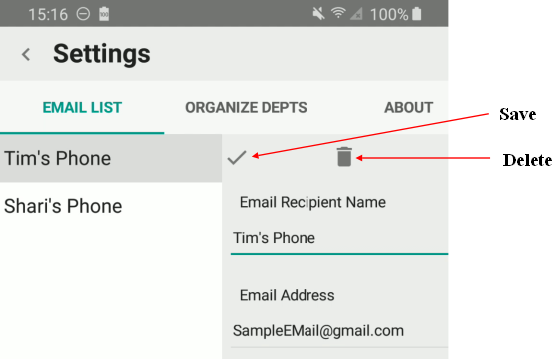
Tap Settings,  at App’s top left and enter the name of your recipient. Then enter their email address below and tap Save. To add a new recipient tap New and repeat the process. If you need to change an email address or made a mistake, just select the name in the list, make your changes and tap Save.
Go! Set the View and Send!
When you’re ready to send your first order to your PleasePickUp! pal you’ll need to set the view to include the items you want in your order. The view is simply all the items listed in grocery items area. The view can be easily changed by tapping either ends of the View selector.

The choices are:
- View only items in Department
- View all except specialty stores
- View all
We have chosen View All for this illustration.
To send the order, tap  .
.
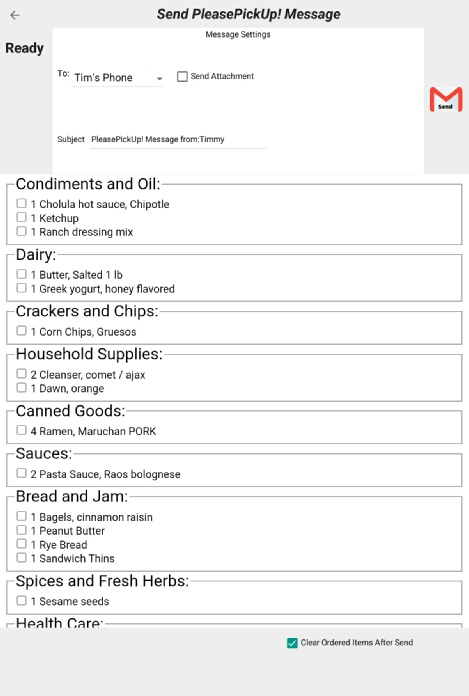
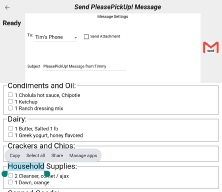
The send message popup previews the checklist ready to send. Take a look at the message settings at the top. Under subject you will see the email subject that will be included in your message: “PleasePickUp! Message from:”. You’ll probably need to add your name after the colon or feel free to change the message altogether! Under To: you’ll see the name of the first recipient on your email list. To change recipients, tap the dropdown and pick a another recipient . To send the message tap Send. Your phone will ask you which email app to use, select Samsung Mail or your favorite* and tap the app’s send icon. PleasePickUp! puts a simple text list of your order into the body of the message and attaches an HTML checklist of your ordered items ready to use in the store shown by department!
* Note for Gmail App
Gmail currently does not support inserting the grocery checklist without some special steps. Samsung mail is the most convenient although you may have your own reasons for choosing Gmail so if that is your choice please see below for specific instructions.
Special Instructions for Gmail App
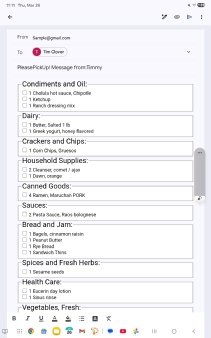
Due to peculiarities in the Gmail app you must copy and paste the message into the Email body in Gmail.
1) While you are in the send
screen, touch and hold on any
text in the message until you
see the clipboard control appears.
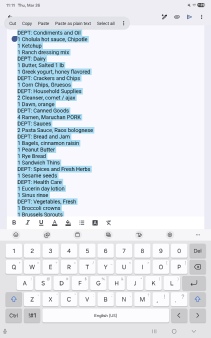
3) Open the Gmail app
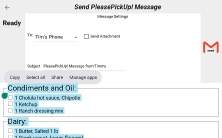
touch/hold text in message 4) Now the grocery list select all and paste is ready to send
2) Tap select all and Copy